stepsonscreen.com
How to Take a Screenshot of Part of the Screen on a Mac
What you need: A Mac showing the message, window or page you want a screenshot of. A screenshot is a picture of what is on the screen. These steps use Screenshot, which is included with macOS, and save the picture in Documents.
Before you begin: Step 2 sets Screenshot to save pictures in Documents. It keeps saving them there afterward.
Steps
- Hold down the Shift key (at the left end of the row of keys above the bottom row, often marked with an upward arrow) and the Command key (marked with the ⌘ symbol, beside the space bar). While holding both, press the 5 key once (in the row of numbers at the top), then let go of all three keys. A row of buttons appears near the bottom of the screen.
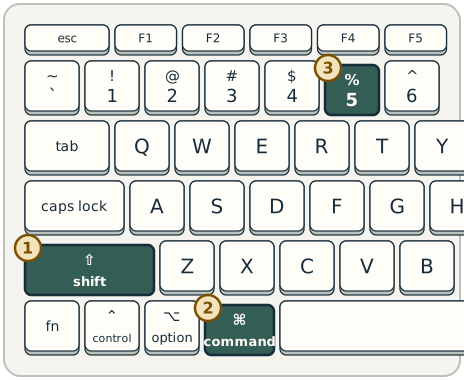
Shift, Command and 5 on a Mac keyboard, for taking a screenshot - In the row of buttons, click Options. Under Save to, click Documents. The list closes.
- In the row of buttons, click Capture Selected Portion. If you are not sure which button it is, point to each button until its name appears. A frame appears on the screen.
- Move the frame over the part of the screen you want. To move it, place the pointer inside the frame, hold down the mouse or trackpad button, move the pointer, and release. To make the frame bigger or smaller, drag one of its edges the same way.
- Click Capture in the row of buttons. A small picture appears at the lower-right corner of the screen for a few seconds, then disappears. The picture is now saved.
- Click Finder (the blue smiling face) in the Dock, the row of app icons along the edge of the screen.
- In the menu bar at the top of the screen, click Go, then Documents. Look for a file whose name begins with Screenshot and includes today's date.
- Click that file's name twice quickly. The picture opens in its own window, so you can check it shows the part of the screen you chose.
Expected result: A picture whose name begins with Screenshot is saved in Documents, and it shows the part of the screen you chose.
Steps last updated on .