stepsonscreen.com
How to Undo a Mistake While Typing on Windows 11
What you need: A Windows 11 computer and a box on a website, an email or a document where you were typing and something changed that you did not want, such as words that disappeared.
Steps
- Stop typing as soon as you notice the change you did not want. Anything you type after it must be undone first.
- Click once inside the box, email or document where the change happened. A thin blinking line (the text cursor) appears.
- Hold down the Ctrl key, in the bottom row near the left corner of the keyboard. While holding it, press the Z key once (the first letter at the left end of the bottom row of letters), then let go of both keys. The most recent change is reversed.
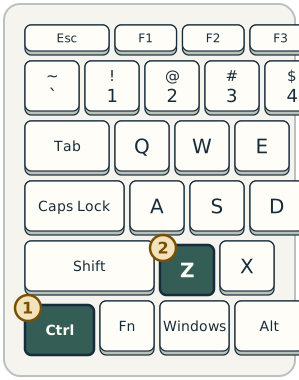
Ctrl and Z on a Windows keyboard, for undoing a mistake - Look at the words. If they are not all back yet, hold down Ctrl and press Z once more. Repeat until the words are back, then stop, because each further press reverses an earlier change too.
Expected result: The words are back the way they were before the change.
Steps last updated on .
Practice these steps
Try these steps on a practice page in your browser. The steps guide you one at a time.
Start the demo