stepsonscreen.com
How to Find Your Way Around the Dock on a Mac
What you need: A Mac that you have signed in to.
Steps
- Look at the bottom of the screen for the Dock, the row of app icons. If you do not see it, move the pointer, the small arrow on the screen, to the very bottom edge of the screen and keep it there until the Dock slides up. To move the pointer, slide your mouse, or slide one finger on the trackpad. If it still does not appear, try the left edge of the screen, then the right edge. These steps describe a Dock along the bottom; if yours is along a side, read "left end" as the top and "right end" as the bottom.
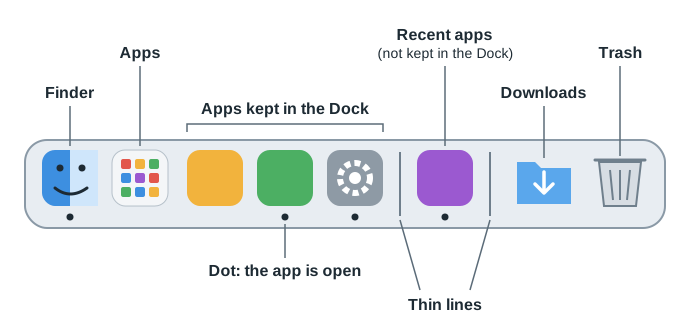
- Move the pointer onto the first icon at the left end of the Dock, a blue and white smiling face, and hold it still without clicking. Its name, Finder, appears above it. Finder is the app that shows your files and folders. If you click by mistake and a window opens, click the red button at the window's top-left corner to close it.
- Find the Apps icon immediately to the right of Finder, a square made of small colored squares. On some Macs this icon is named Launchpad. Click it once: move the pointer onto it, then press the mouse button (or the trackpad) once and let go. Every app on your Mac appears, so you can open one that is not in the Dock. Press the esc key, at the top-left corner of the keyboard, to close them without opening an app. If you do not see this icon, go on to the next step.
- Look at the icons to the right of Apps. These are the apps kept in the Dock. Their icons stay in the Dock whether the app is open or not, and clicking one opens that app. Point at an icon without clicking to see its name.
- Find System Settings among these icons, a gray gear, often the last one before a thin upright line. Click it. A System Settings window opens, and a small dot appears below the System Settings icon. A dot below an icon means that app is open. Finder has a dot too, because Finder is always open. If you do not see System Settings in the Dock, click the Apple logo at the left end of the menu bar, then click System Settings; its icon then appears with a dot below it to the right of the thin line.
- In the list on the left side of the System Settings window, click Desktop & Dock. You may need to scroll down the list to find it: rest the pointer on the list, then roll the mouse wheel, or slide two fingers on the trackpad, until Desktop & Dock appears. On the right, below Dock, are the settings that place and hide the Dock: Dock position on screen (named Position on screen on some Macs) puts it along the left, bottom or right edge, and Automatically hide and show the Dock hides it until you move the pointer to that edge. You do not need to change them now.
- Look at the thin upright line in the Dock, to the right of the apps kept in the Dock. If there is a second line further along, the icons between the two lines are apps you used recently, or apps your Mac suggests, that are not kept in the Dock. An open app that is not kept in the Dock also appears near this line, with a dot below it. These icons change by themselves as you use different apps.
- Look to the right of the last line. The Downloads folder is usually here, shown as a blue folder with an arrow pointing down, or as a small pile of file pictures. Clicking it shows the files you downloaded from websites. Other folders added to the Dock also appear here. You do not need to click it now.
- Find the Trash, a wastebasket, at the right end of the Dock. Items you delete wait in the Trash until it is emptied, so you can still take them back out, as in How to Delete and Restore an Empty Practice Folder on a Mac.
- Control-click the System Settings icon in the Dock: put the pointer on it, hold down the Control key (marked control or ⌃, in the bottom row of the keyboard near the left corner), press the mouse button or the trackpad once, then let go of both. A menu opens above the icon. In it, Options holds Keep in Dock, which decides whether the icon stays in the Dock after the app quits. Do not click Options or the other choices now. Quit, at the bottom of the menu, closes the app. For an app that is not open, the menu shows Open instead of Quit.
- Click Quit in the menu. System Settings closes: its window goes away, and the dot below its icon disappears.
Expected result: System Settings is closed, and you have found Finder, Apps, the apps kept in the Dock, the dot below an open app, the thin line, the Downloads folder, the Trash, the menu that opens when you Control-click an icon, and the settings that move or hide the Dock.
Steps last updated on .
Practice these steps
Try this task on a pretend Mac screen in your browser. The steps guide you one at a time, and nothing changes on your own computer.
Start the demo