stepsonscreen.com
How to Tap, Scroll and Zoom with Your Fingers on an iPhone
What you need: An iPhone with a web page open on its screen, such as the practice page that opens when you tap Start the demo below these steps on the website.
Steps
- To tap a button, touch it lightly with the soft pad of one fingertip, not your fingernail, then lift your finger straight away without sliding it. You do not need to press hard. The button does what its words say. If your finger slides, the button is not pressed; touch it again. If you hold your finger down instead, a word may turn highlighted; tap an empty part of the page to clear it, then tap the button again.
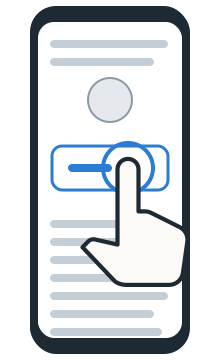
Touch the button lightly, then lift your finger - To scroll down the page, put one finger near the middle of the screen, on the words of the page. Slide it up the screen, then lift it. The page moves up with your finger and shows more of the page from below.
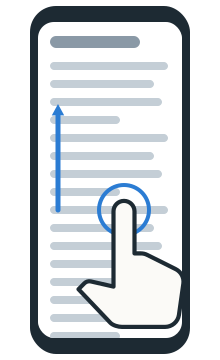
Slide one finger up to see more of the page below - Keep sliding your finger up, starting near the middle of the screen each time, until nothing new comes up from below. You have reached the end of the page.
- To scroll back up, put one finger near the middle of the screen and slide it down the screen, then lift it. Do this again until you see the top of the page, then stop.
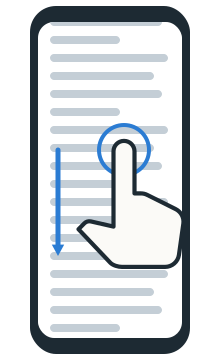
Slide one finger down to go back up the page - To zoom in on small words, hold the phone in one hand. With your other hand, put your thumb and the finger next to it close together on the words, touching the screen. Keep both on the screen and spread them apart, then lift them. The words and pictures get bigger.
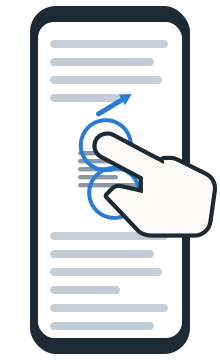
Spread your thumb and finger apart to make the page bigger - Part of the page is now past the edges of the screen. To see it, put one finger near the middle of the screen and slide it in any direction. The bigger page moves with your finger.
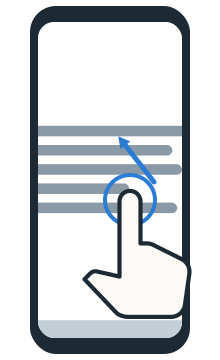
Slide one finger to move around the bigger page - To zoom back out, put your thumb and finger on the screen apart from each other. Keep both on the screen and bring them together, then lift them. Do this again until the page is back to its usual size, filling the screen from side to side.
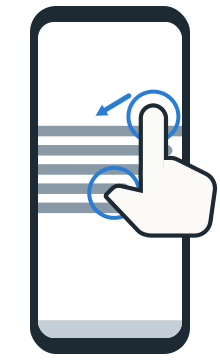
Bring your thumb and finger together to make the page smaller
Expected result: You tapped a button, scrolled to the end of a page and back to its top, zoomed in on small words and moved around the bigger page, and zoomed back out to the usual size.
Steps last updated on .
Practice these steps
Try these steps on a practice page made for your iPhone: open this lesson on the iPhone, then tap Start the demo. The steps guide you one at a time.
Start the demo